Publishing Guide
How to Turn a Photo Into a Coloring Page
Learn how to turn a photo into a coloring page in a simple, fast, and free way. See how AI can help you get a clean printable result.
· · 8 min read
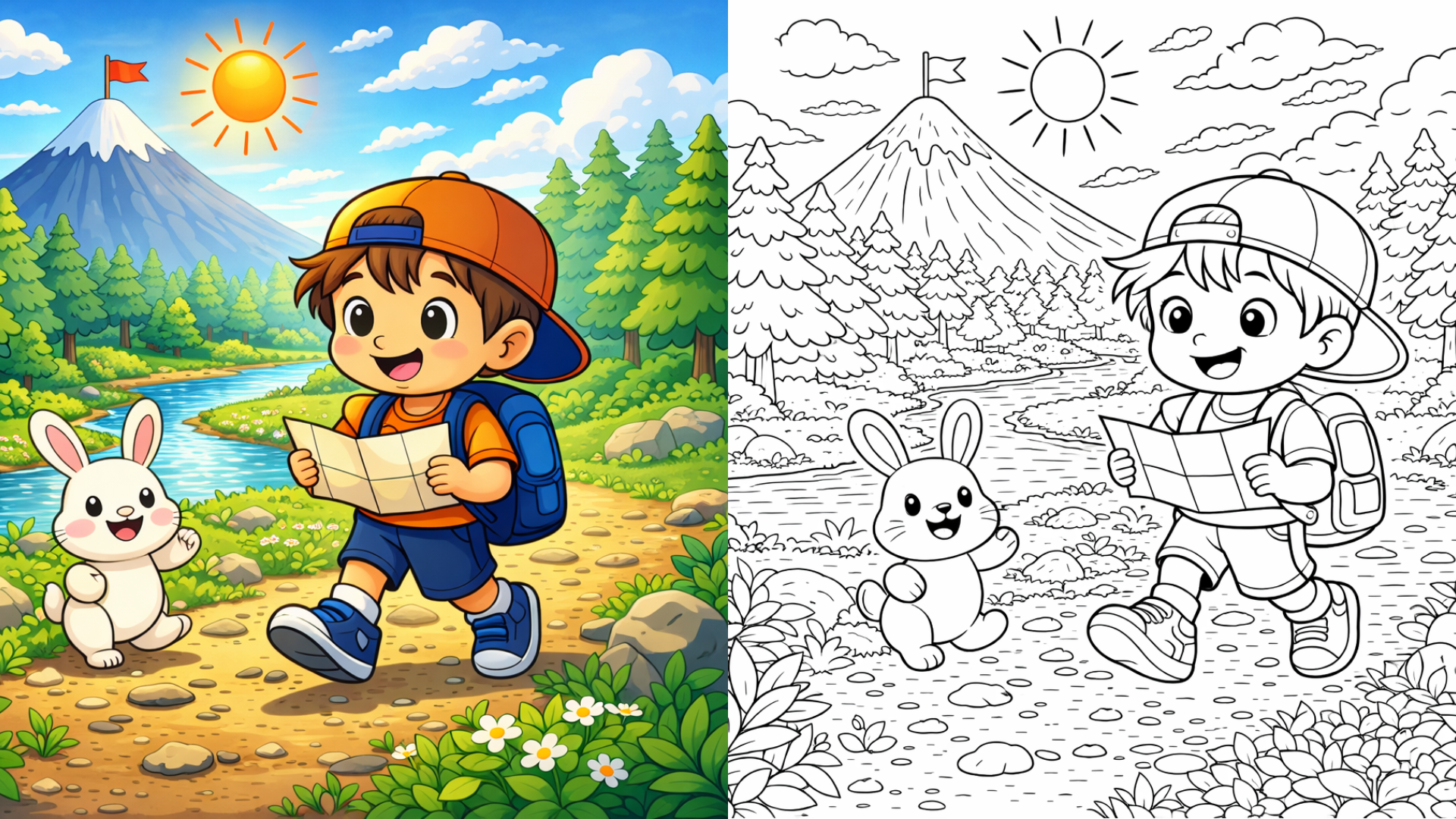
Article content
You usually search this keyword for one reason: you want a usable result fast.
Not a design lecture. Not a 20-step Photoshop workflow. Not a messy sketch filter that looks clever on screen, but turns ugly when printed.
Most beginners hit the same wall. They try Canva, Adobe tools, or Photoshop. Then they spend too much time removing backgrounds, simplifying details, fixing broken edges, and cleaning up lines one by one. The result often still looks too busy to color, too dirty to print, or too far from the original photo. That pattern matches what current English-language results already imply: users want a how-to answer, but they also want an immediate tool-based solution, not just theory.
A better answer is simpler: choose a photo, upload it, let AI generate the coloring page, then check whether the output is clean, recognizable, and printable. That is the real workflow people are looking for when they search “how to turn a photo into a coloring page.”
Why is the manual method so hard for beginners?
Manual conversion sounds easy until you actually try to do it well.
On paper, the old workflow looks reasonable: upload a photo into Canva or Photoshop, remove the color, increase contrast, trace the outlines, erase background clutter, simplify textures, and export. In practice, each of those steps creates a new problem. If you keep too much detail, the page becomes noisy. If you remove too much, the subject stops looking like the original. If the edges are weak, the image prints badly. If the background is complex, the outlines become muddy and hard to color. Current tool pages that rank for this topic repeatedly emphasize clean edges, simple backgrounds, and output clarity for exactly this reason.
For beginners, the real issue is not “Can I make a black-and-white image?” The real issue is “Can I make a black-and-white image that still looks good as a coloring page?” That standard is much higher. A good coloring page needs a clear main subject, readable black outlines, enough white space, and a level of detail that feels interesting without becoming exhausting. Many manual workflows are built for editing photos or creating art, not for producing clean printable line art for kids, hobby users, or KDP-style printable products.
Why is AI the best way to solve it?
AI is the best solution because it removes the slowest part of the process: manual cleanup.
Instead of tracing, masking, simplifying, and fixing every little area by hand, AI can analyze the image, interpret the main shapes, and generate a cleaner black-and-white version in one step. Google describes Nano Banana, Gemini’s native image generation capability, as a system that can create, edit, and iterate on visuals conversationally using text, images, or both. That matters here because the real need is not just static conversion. It is fast iteration: upload, generate, compare, retry, and improve.
People do not want to study image editing for an hour. They want a working coloring page in minutes. AI matches that expectation better than traditional design tools because it shortens the gap between idea and result. Instead of asking, “How do I rebuild this photo manually as line art?” the user can ask, “Does this photo convert well?” That is a much better beginner workflow.
AI is also a stronger fit for printable creators. If you are testing ideas, niches, or image styles, speed matters. You want to try a pet photo, a face, an object, and a simple scene without spending hours cleaning each attempt. That is where AI wins. It helps you test more inputs, learn what kinds of photos work best, and reach a usable result faster.
Here is the uncomfortable truth many tutorials skip: for this task, “more control” is not always better. Beginners often assume Photoshop is superior because it offers more tools. In reality, more tools often means more ways to overcomplicate a simple job. For turning a photo into a coloring page, the best workflow is usually the one that gets you to a clean, printable, recognizable result with the least friction.
How do you turn a photo into a coloring page?
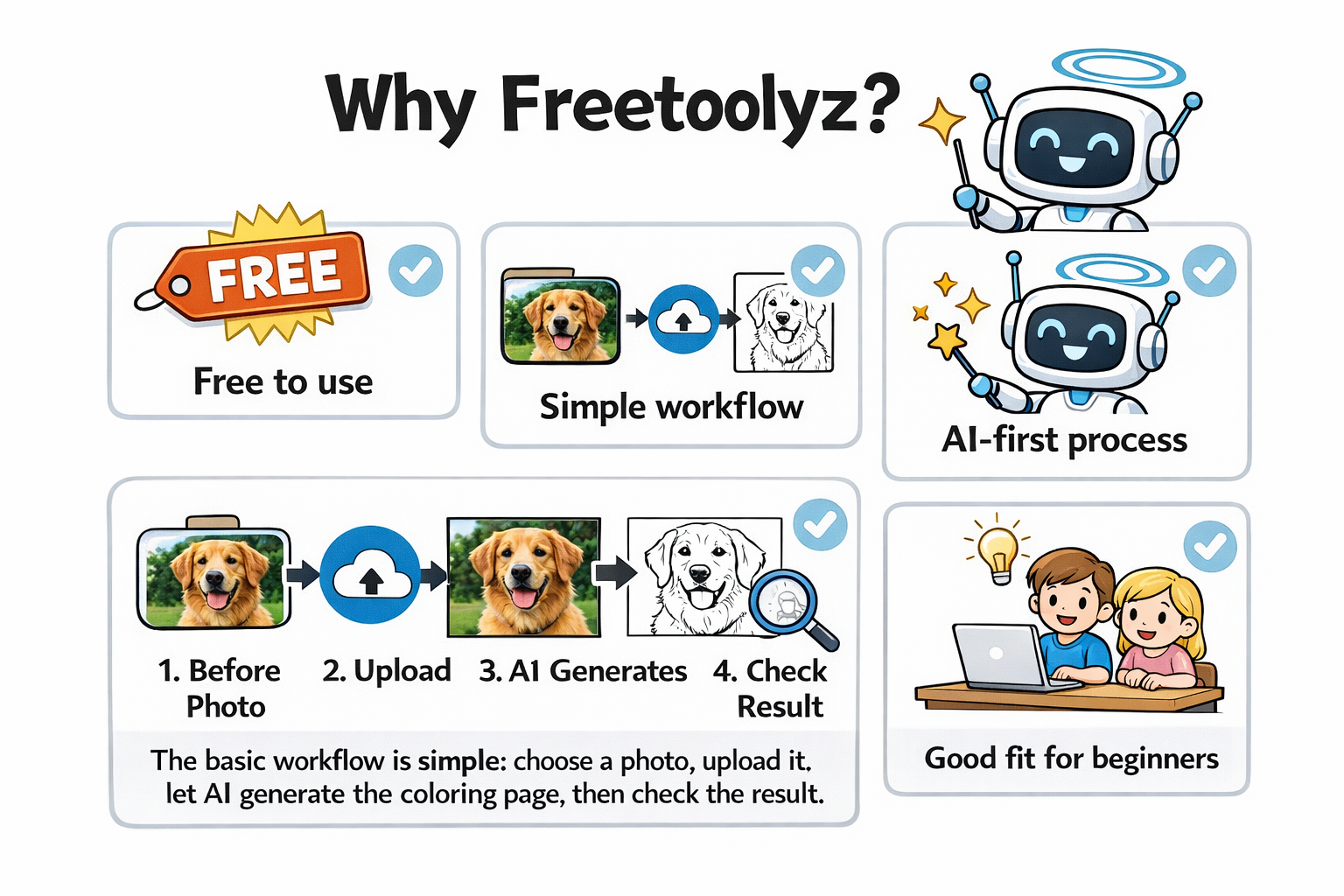
The simplest workflow is this:
- Choose a photo
- Upload it
- Let AI generate the coloring page
- Check whether the result is clean enough to use
That is the workflow most users actually want.
This is where Freetoolyz becomes useful as a practical tool rather than a generic AI app. Your task is narrow and specific: convert a photo into a coloring page. You do not need a broad creative suite for that. You need a workflow that is easy for beginners, fast enough for repeated testing, and focused on clean results.
Why Freetoolyz?
- Free to use based on your current product positioning
- Simple workflow for this exact task
- AI-first process instead of manual cleanup first
- Before/after checking is built into the natural workflow
- Good fit for beginners who want results without design skills
Comparison table
| Tool | Free option | Paid entry point | What it is better for | What makes it less ideal for this task |
|---|---|---|---|---|
| Freetoolyz | Yes | Free | Fast photo-to-coloring-page workflow | Narrower scope than full creative suites |
| ChatGPT | Yes, with limited image generation | Plus at $20/month | General-purpose prompting, image generation, multi-step iteration | Not built specifically around a photo-to-coloring-page workflow; you may need more trial and error |
| Google Nano Banana / Gemini image generation | Available to try in Google AI Studio / Gemini ecosystem | Varies by Google plan and product | Broad image generation and editing inside Google’s Gemini ecosystem | More general image-generation platform, not a dedicated coloring-page workflow |
| Midjourney | No free plan | Basic plan at $10/month | Artistic image generation, stylized outputs | Built for broader image creation, not specifically for quick printable coloring-page conversion |
| Leonardo | Yes, 150 fast tokens/day on free tier | Essential at $12/month, Premium $30/month, Ultimate $60/month | Image generation with broader creative controls and multiple plan tiers | More feature-heavy than many beginners need for this single task |
The point is not that other tools are bad. They are broader. If your immediate goal is to turn a photo into a clean coloring page quickly, a focused free tool is easier to start with.
How do you know if the final image is high quality?
This is the part that most articles do not explain well enough.
A coloring page is not high quality just because it was generated by AI. It is high quality when it is clear, recognizable, printable, and easy to color.
Use this quick check:
1. Is the main subject still recognizable?
If someone looks at the page for two seconds, they should know what it is. If the dog no longer looks like a dog, or the face loses its identity, the conversion failed.
2. Are the outlines clean?
The lines should feel readable, not fuzzy or broken. A coloring page should guide the eye. If the outlines look weak, chaotic, or overloaded with micro-detail, the page will be frustrating to use.
3. Is there too much detail?
This is where many AI outputs fail. They preserve texture that should have been simplified. Fur, fabric folds, leaves, shadows, and background clutter may look “rich,” but they often make the page dirty. For a coloring page, less detail is usually better than too much.
4. Is there enough white space?
A good coloring page gives the user room to color. If every area is tiny, crowded, or fragmented, the result may look clever, but it is not pleasant to use.
5. Will it print cleanly?
Good printable results rely on clear black outlines and sufficient contrast between the subject and the background. That is exactly why current ranking pages repeatedly recommend sharp photos, simple backgrounds, and stronger edge clarity.
A useful rule is this: if the page looks harder to color than the original photo looked to understand, it is not a good coloring page yet.
That single idea helps beginners judge output much faster. A good conversion should simplify the image, not make it harder to read.
Quick quality checklist
Before you keep the result, ask:
- Is the main subject obvious?
- Do the outlines look clean in black and white?
- Is the background simple enough?
- Are the shapes large enough to color comfortably?
- Would this still look good after printing?
If the answer is “no” to two or more of those, try a better source photo first. Often, the problem is not the tool. It is the input image.
FAQ
Can I convert a photo to a coloring page online for free?
Yes. Some tools offer free access or free tiers. Freetoolyz is positioned as a free option, while ChatGPT and Leonardo also provide free access with limits, and Midjourney does not offer a free plan
Is AI better than Photoshop for this task?
For most beginners, yes. AI is faster and easier when the goal is a usable coloring page, not detailed manual art editing.
What format should I export?
PNG is a practical choice when you want a simple image file that is easy to save, review, and print.
Final takeaway
If you want to learn how to turn a photo into a coloring page, the answer is simpler than most tutorials make it sound.
The hard way is manual editing.
The better way is AI.
The practical workflow is: choose a photo, upload it, let AI generate, and check the result.
That is the fastest path for beginners, and it is also the most realistic path for creators who want to test ideas quickly without wasting time inside complicated design tools.
Try your first image with Freetoolyz and see what happens with a simple photo first. Start with one clear subject, keep your standards focused on clarity and printability, and judge the output by usefulness, not by how complicated it looks.
About the author
Founder & Developer
.png)
Hello! I'm passionate about creating tools that make people's lives easier. Free Toolyz started as a personal project to build the utilities I wished existed, and it has grown into a suite of tools for authors and publishers.